> ## Documentation Index
> Fetch the complete documentation index at: https://docs.lumalytics.app/llms.txt
> Use this file to discover all available pages before exploring further.
# Upload
> How to upload your Luma CSVs to Lumalytics.
Uploading your CSVs properly is KEY step into getting the most of your data.
### 1. Upload Item Data
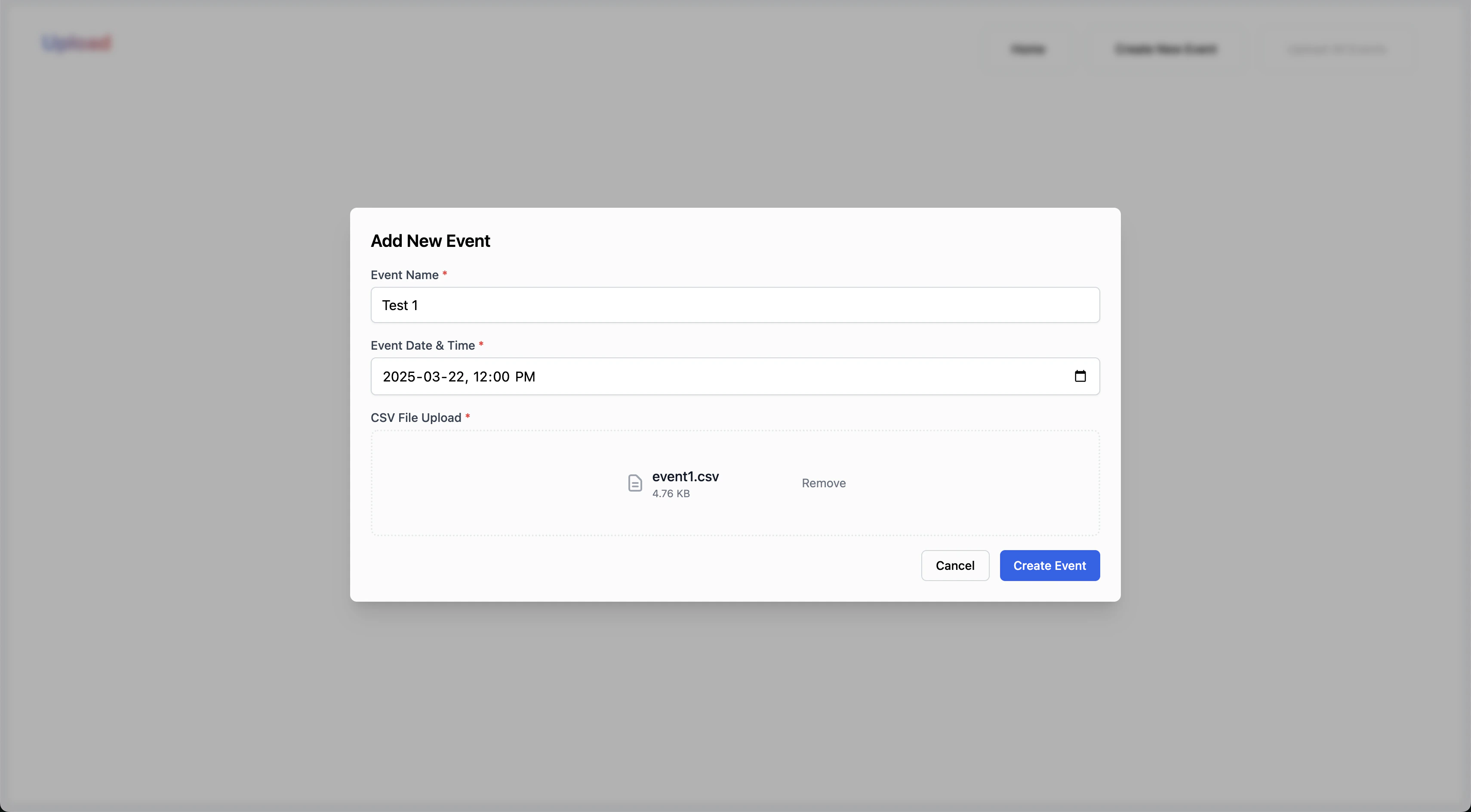
We prepare a list of UploadItems before they are upload to our backend. Each UploadItem is an object with the following properties:
* **eventName**: The name of the event
* **eventDate**: The date of the event
* **file**: The file(CSV) to upload
This is the interface in our codebase:
```typescript theme={null}
export interface UploadItem {
eventName: string;
eventDate: string;
file: File;
}
```
 CSVs must be less than 1MB in size.
You can't upload ducliplate names for:
* CSVs
* EventNames
### 2. Upload Item List
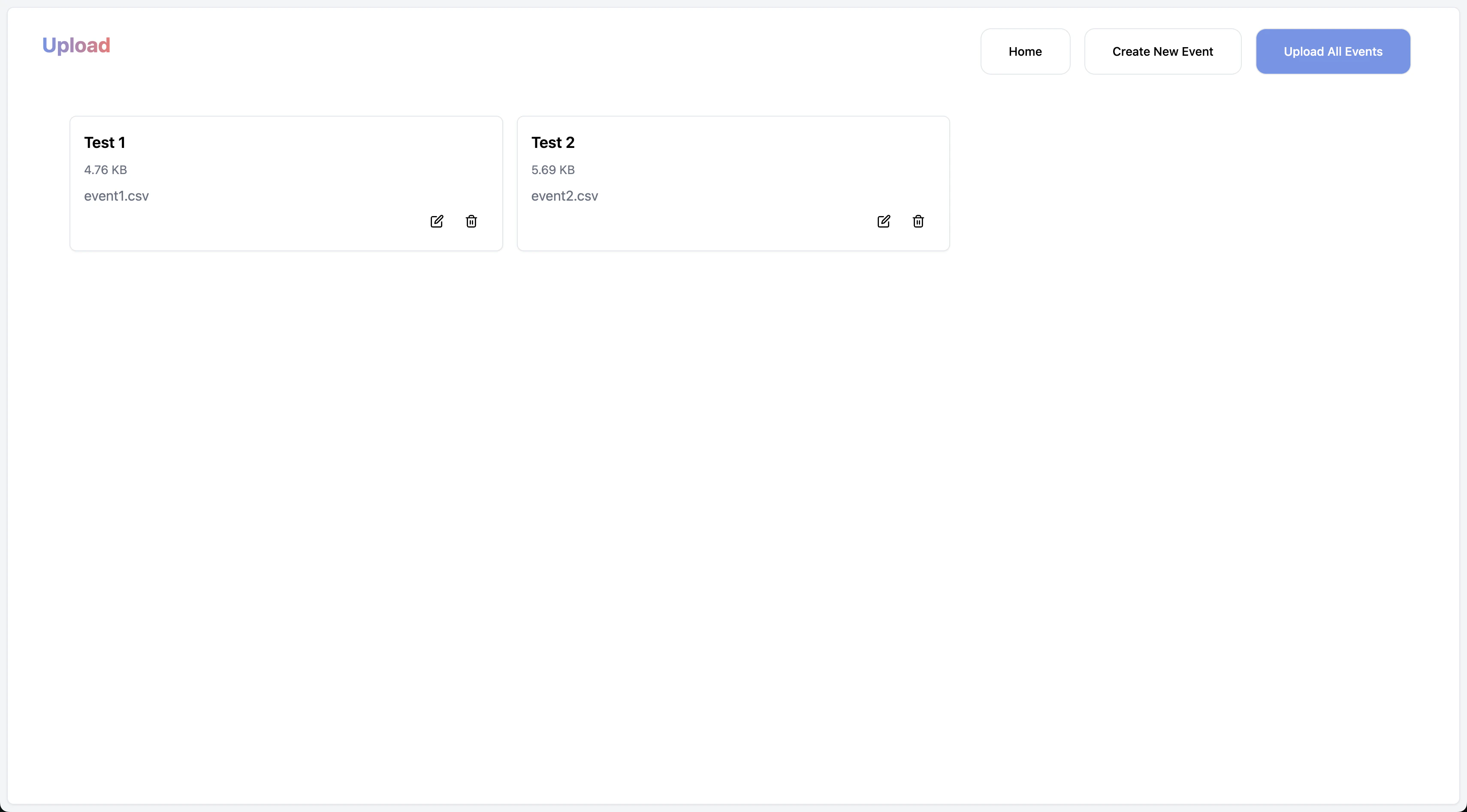
After you create an event, you can upload as many as you would like. The thought behind is that Luma calendars have more than 1 event hosted.
By implementing this system, we are able to simulate a "batch" upload system that makes the lives of Luma hosts just a bit easier.
CSVs must be less than 1MB in size.
You can't upload ducliplate names for:
* CSVs
* EventNames
### 2. Upload Item List
After you create an event, you can upload as many as you would like. The thought behind is that Luma calendars have more than 1 event hosted.
By implementing this system, we are able to simulate a "batch" upload system that makes the lives of Luma hosts just a bit easier.
 ### 3. Upload the Items
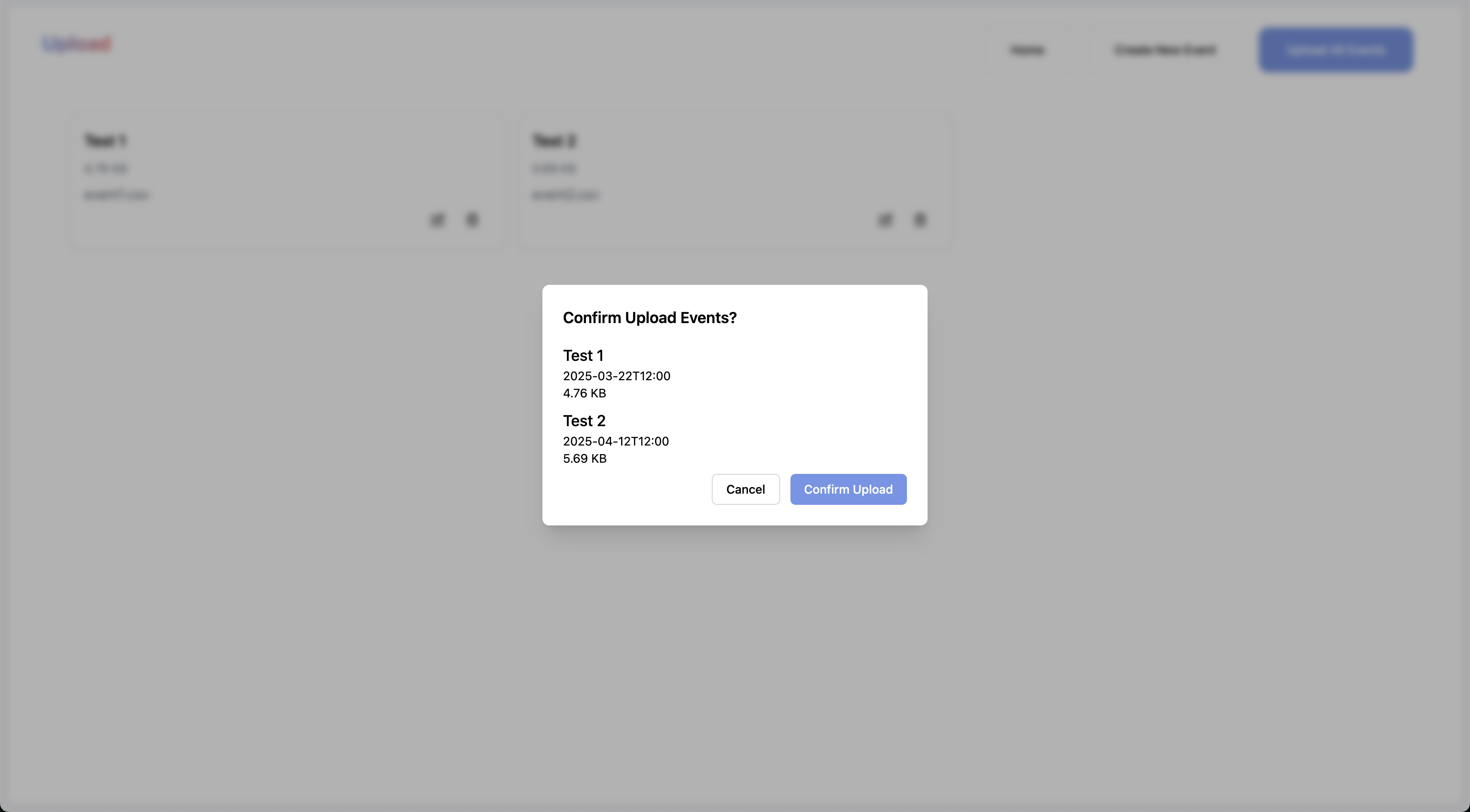
After you have created the event and uploaded the CSVs, you can upload the items.
If the upload resolves, you will be automatically redirected the `/dashboard` page.
### 3. Upload the Items
After you have created the event and uploaded the CSVs, you can upload the items.
If the upload resolves, you will be automatically redirected the `/dashboard` page.